Appearance
现在开始,我们要进行 Sidebar 组件的开发,篇幅和时间原因,本篇先探讨 el-menu 的配置。
菜单样式设置
在 src/style/variables.module.scss 中,我们设置菜单样式相关的变量,这些变量将用于后续组件的样式配置。
scss
//src/style/variables.module.scss
$sideBarWidth: 210px;
$navBarHeight: 50px;
$tagsViewHeight: 34px;
// 导航颜色
$menuText: #bfcbd9;
// 导航激活的颜色
$menuActiveText: #409eff;
// 菜单背景色
$menuBg: #304156;
:export {
  menuText: $menuText;
  menuActiveText: $menuActiveText;
  menuBg: $menuBg;
}
:export是 CSS 模块中用于在 SCSS 文件导出变量供 JavaScript 使用的规则。在 SCSS 文件里定义变量后,通过:export规则块,将变量映射成适合 JavaScript 访问的名称。在支持 CSS 模块的构建工具(如 Vite、Webpack)的 JavaScript 代码中,导入该 SCSS 文件,就能使用这些导出的变量。需注意,导出变量名要遵循 JavaScript 命名规范,且依赖构建工具对 CSS 模块的支持,变量值在构建时确定,运行时无法直接修改。
Sidebar 组件开发
2.1. 创建组件文件
在 src/layout/components/Sidebar 目录下创建 index.vue 文件。由于之前自动引入配置的路径要求,组件需放在 components 文件夹下,也可按需修改自动引入配置。
html
//src/layout/components/Sidebar/index.vue
<template>
  <el-menu
    router
    :default-active="defaultActive"
    :background-color="variables.menuBg"
    :text-color="variables.menuText"
    :active-text-color="variables.menuActiveText"
  >
    <el-menu-item index="/dashboard">
      <el-icon><setting /></el-icon>
      <template #title>Navigator</template>
    </el-menu-item>
  </el-menu>
</template>
<script lang="ts" setup>
  import variables from "@/style/variables.module.scss";
  const route = useRoute();
  const defaultActive = computed(() => {
    return route.path;
  });
</script>
<style scoped></style>
2.2 解决 TypeScript 类型导入问题
在 script 中直接导入 variables.module.scss 时,TypeScript 会报错,原因是它默认只识别 .ts、.js 等文件类型,缺少对 .scss 文件的类型定义。为解决该问题,我们在 src/style 下新建 variables.module.scss.d.ts 文件,为 variables.module.scss 提供类型定义。
typescript
//src/style/variables.module.scss.d.ts
interface IVariables {
  menuText: string;
  menuActiveText: string;
  menuBg: string;
}
export const variables: IVariables;
export default variables;
通过创建该文件,TypeScript 能够识别 variables.module.scss 模块的类型,从而可以正常导入。
页面引入 Sidebar 组件
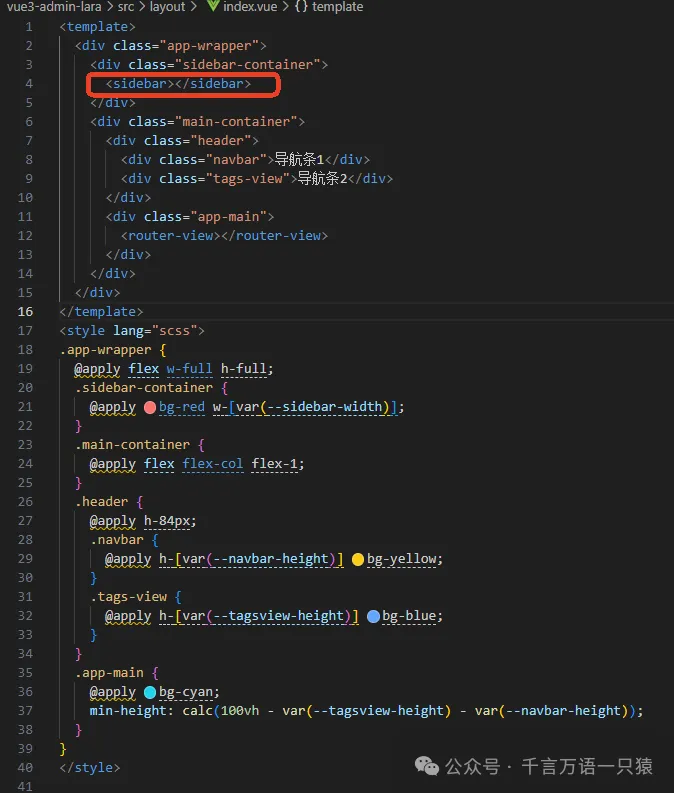
在 layout/index.vue 中引入 Sidebar 组件。
html
//src/layout/indev.vue
<template>
  <div class="app-wrapper">
    <div class="sidebar-container">
      <sidebar></sidebar>
    </div>
    <div class="main-container">
      <div class="header">
        <div class="navbar">导航条1</div>
        <div class="tags-view">导航条2</div>
      </div>
      <div class="app-main">
        <router-view></router-view>
      </div>
    </div>
  </div>
</template>
<style lang="scss">
  .app-wrapper {
    @apply flex w-full h-full;
    .sidebar-container {
      @apply bg-red w-[var(--sidebar-width)];
    }
    .main-container {
      @apply flex flex-col flex-1;
    }
    .header {
      @apply h-84px;
      .navbar {
        @apply h-[var(--navbar-height)] bg-yellow;
      }
      .tags-view {
        @apply h-[var(--tagsview-height)] bg-blue;
      }
    }
    .app-main {
      @apply bg-cyan;
      min-height: calc(100vh - var(--tagsview-height) - var(--navbar-height));
    }
  }
</style>
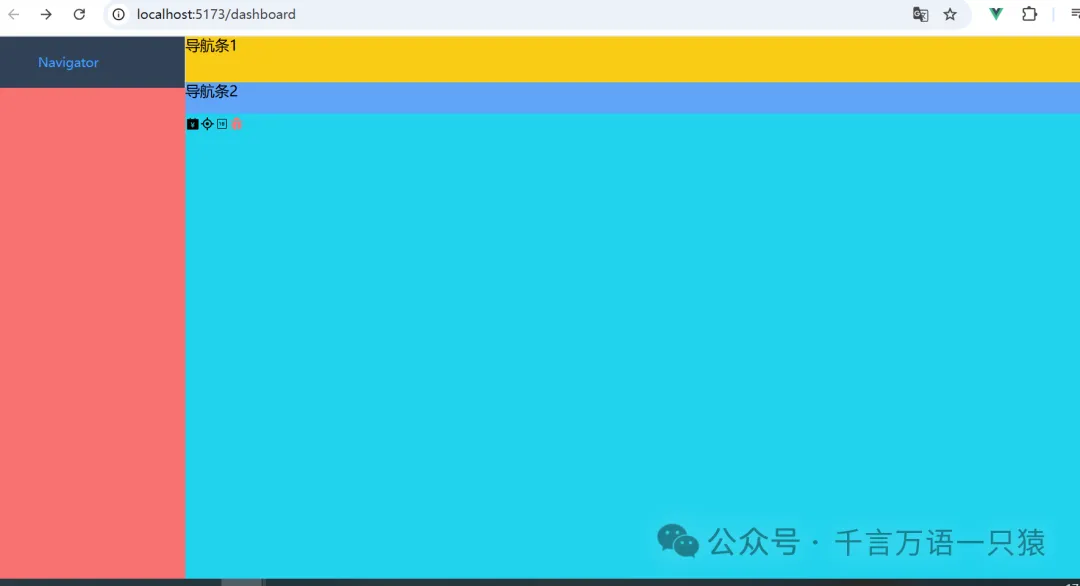
完成上述所有步骤后,在项目的根目录下运行 npm run dev 命令即可启动开发服务器,打开浏览器访问相应的地址,就可以查看页面的实际效果,检查 Sidebar 组件是否按照预期显示和工作。